Soundshot Video Prep
A compact desktop utility for preparing editor-supplied video files for Pro Tools sound post-production sessions. It converts video to Avid-friendly DNxHD/DNxHR formats and keeps source video, converted video and AAF files organized with a clear Soundshot project-based naming protocol.
- Convert editor-supplied H.264/H.265 video to Pro Tools-friendly DNxHD/DNxHR
- Create DNxHD and a smaller Lossy MP4 review file in one run
- Keep source video, converted video and AAF files organized with the Soundshot naming protocol
- Process multiple files in a batch and convert frame rates when needed
- Add optional burn-in timecode with a custom start value and 2-pop offset
- Use Natural or Punchy Improve Color presets for flat editorial reference video
Windows Portable ZIP · no installation required· No installation required
Unsigned beta. Security warnings may appear.This beta is not code-signed or notarized yet, so Windows SmartScreen or macOS Gatekeeper may show a warning on first launch.
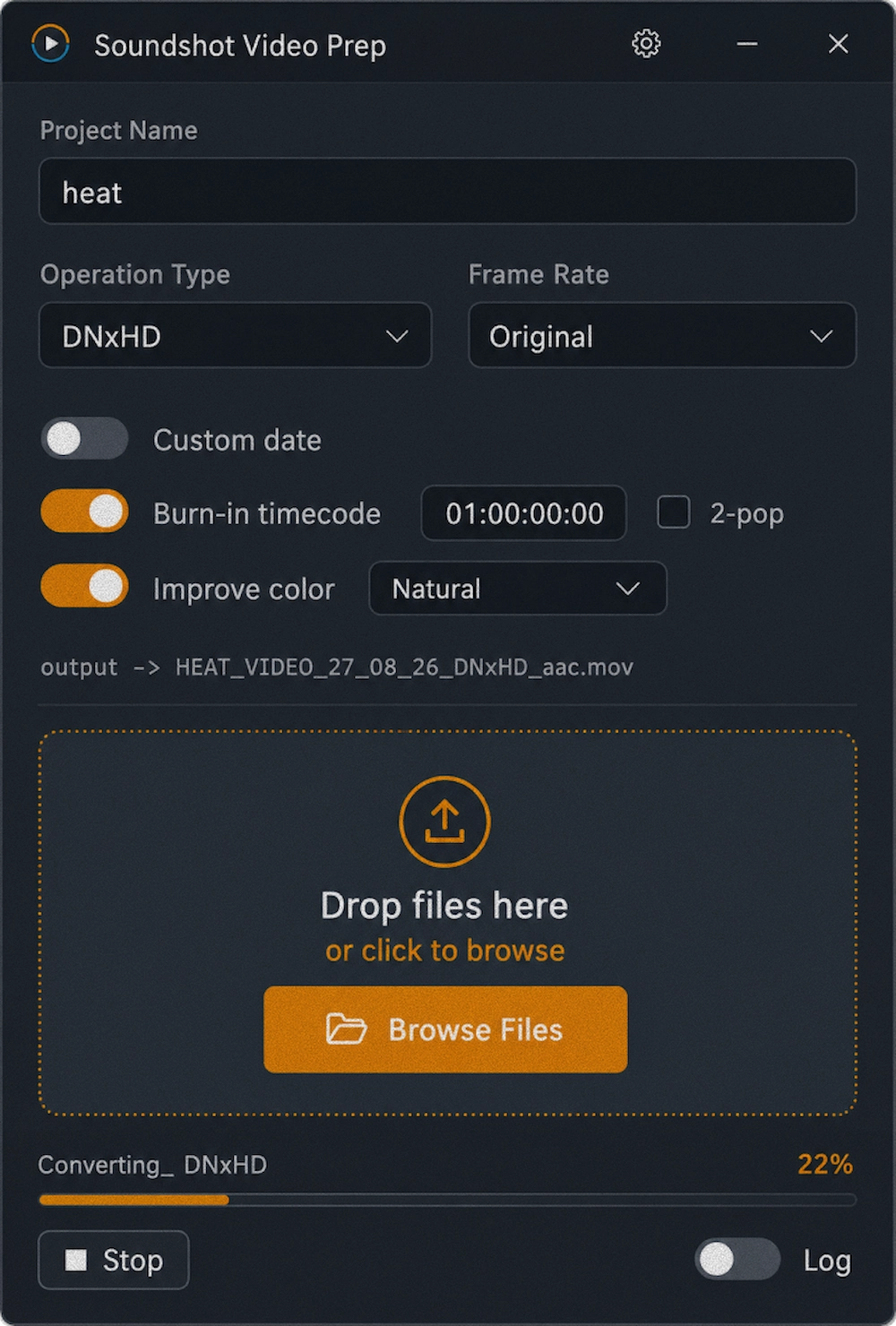
Installation & First Launch
Windows Installer: Run the Setup EXE, then open the app from the Start Menu.
Windows Portable: Extract the entire ZIP, keep all files together, then run the EXE from that folder.
macOS Apple Silicon: Double-click Soundshot Video Prep.app to launch it.
If Windows SmartScreen appears, check the download source, then choose More info → Run anyway.
If macOS Gatekeeper blocks the app, go to System Settings → Privacy & Security → Open Anyway.
Documentation
- 01Enter a project name if you want project-based names for video and AAF files.
- 02Drop in the editor-supplied video, or click Browse Files.
- 03DNxHD is selected by default. Choose DNxHD + Lossy, DNxHR LB, Lossy MP4, FPS Conversion or Rename Only when needed.
- 04For visible reference timecode, enable burn-in. It uses the source frame rate and starts at 01:00:00:00 by default; you can set another start time or a 2-pop offset.
- 05For flat or log-like reference video, enable Improve Color. Choose Natural for a subtle lift or Punchy for stronger contrast.
- 06You can process files in batches or use FPS Conversion for a different frame rate.
- 07Output names follow the Soundshot protocol: project, file type, date, format and optional suffix.
- 08Drop in an AAF to rename it with the same protocol. The generated name is copied to the clipboard for use with the corresponding Media Folder.
- 09Check the filename preview, Options and Log / History for names, settings and processing details.
PROJECT_VIDEO_26_08_26_DNxHD_aac.movPROJECT: project · VIDEO: file type · 26_08_26: date · DNxHD: format · aac: suffix
Version history
0.9.4 Beta
New builds and workflow fixes.
- Added the combined DNxHD + Lossy workflow and a Windows Installer
- Released the first macOS Apple Silicon build
- Updated bundled FFmpeg and FFprobe to 8.1.3
- Fixed a DNxHD 36 encoder crash and improved constant frame-rate handling
- Fixed burn-in timecode field display across platforms
0.9.3 Beta
Maintenance and workflow update based on early user feedback.
- Added WebM / AV1 source file support when supported by the bundled FFmpeg build
- Added Improve Color for flat or log-looking editorial reference videos
- Added Natural and Punchy Improve Color presets
- Improve Color can be used with DNxHD, DNxHR LB and Lossy outputs
- Improve Color can be combined with burn-in timecode
- Added AAF quick action while video conversion is running
- AAF media folder names are now copied to the clipboard after AAF rename
- Updated supported file type documentation
0.9.1 Beta
Feature and workflow update adding burn-in timecode, shortcuts access and a clearer Options window.
- Added optional burn-in timecode for converted files
- Added configurable burn-in start timecode with 01:00:00:00 as the default
- Added automatic source frame-rate detection for burn-in timecode
- Added optional 2-pop timecode offset
- Added a Shortcuts window to the title-bar settings menu
- Improved the Options window layout, spacing and disabled states
- Improved filename preview tooltip readability
0.9.0 Beta
Initial public beta release.
- DNxHD / DNxHR-oriented video preparation workflow
- Clean project-based naming for video and AAF files
- Batch processing
- Output filename preview
- Initial Windows beta build
Found a bug or have a suggestion for Video Prep? Send feedback